
Web UI
Elowen is a personal AI agent you chat with — it reasons, calls tools, edits files, runs commands, and works across Discord, WhatsApp, and the web. The web UI is where you watch and steer that agent. It is not the product; it is your window into the agent and your controls for it.
Everything here is built around the clarity pillar: a clean, uncluttered surface where you can always see what the agent is doing, and step in the moment you want to. The modules split into two groups — Operate (watch and drive live work) and Config (set the agent up) — mirrored exactly in the left sidebar.
Watch and steer the agent
Think of the web UI as a mission-control view over one agent doing many things at once. The Operate group answers "what is the agent doing right now, and is it going where I want?" The Config group answers "what may the agent do, with which models, and who can use it?" You rarely need to memorize routes — the sidebar groups everything — but each module's URL is listed below so you can deep-link.
Dashboard
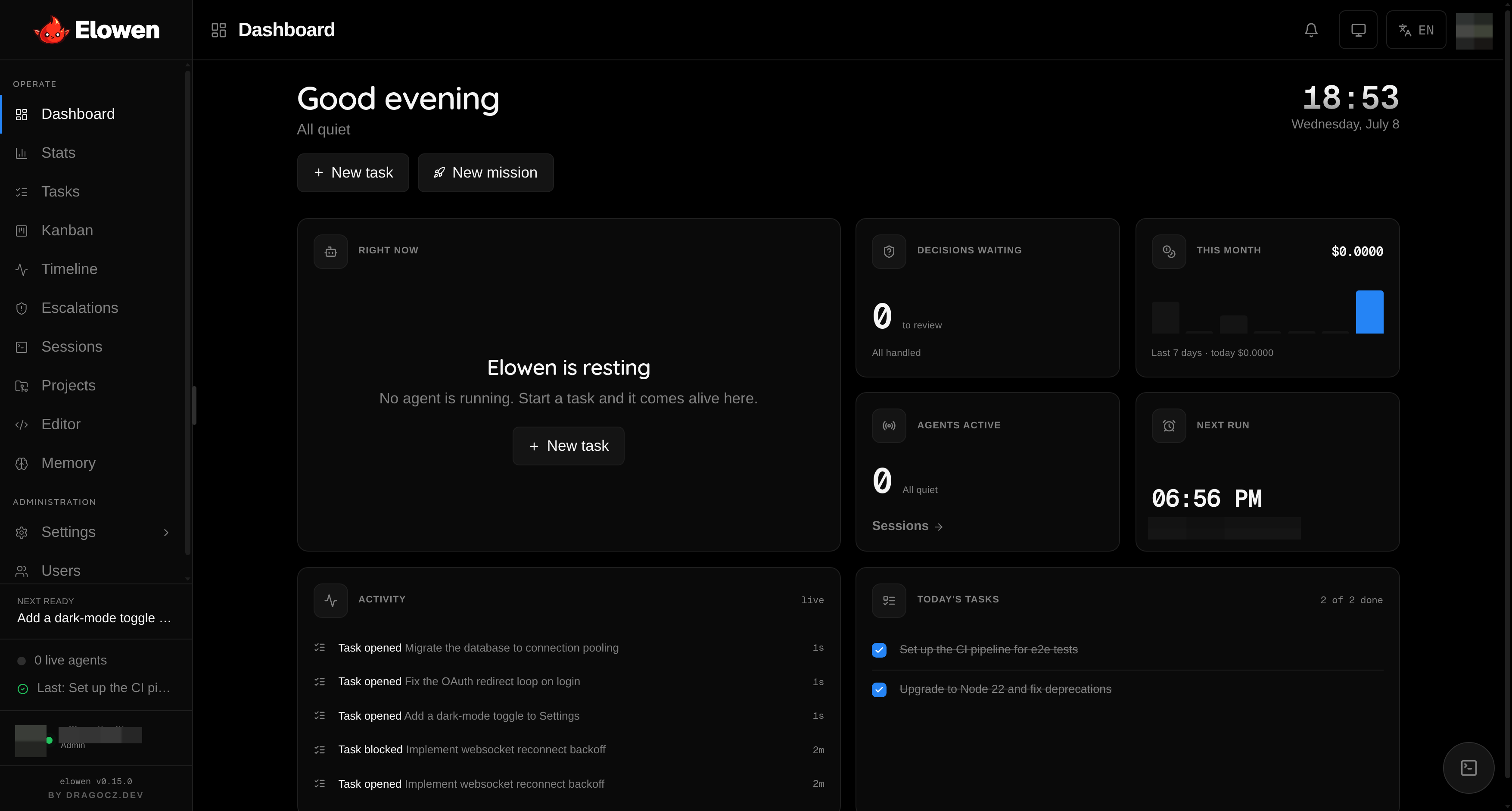
/dash — a single-agent home laid out as a bento grid, answering what is my agent doing right now, what does it need from me, and what did it get done today. The heavier mission control — the constellation and mission engage/pause — lives in Tasks now, so the dashboard stays a calm at-a-glance surface.
- Header — a time-of-day greeting, a one-line status (
2 agents working/ all quiet), a live clock and date, and two quick-launch buttons: New task and New mission. - Right now (hero tile) — the 2×2 focal tile. It picks the primary live agent, the task it's on, and — when that task is a mission phase — a phase progress bar and file/line churn, over a live terminal line and a running pill with elapsed time. When nothing runs it drops to a calm "resting" state with a New task CTA.
- Decisions waiting — pending agent questions plus overseer escalations as one count; turns warning-toned and links to Escalations the moment any decision is owed.
- This month's spend — the month's cost with a 7-day token sparkline and today's cost (reads
—when no settled task carried a price, e.g. Claude/Codex-only runs). - Active agents — how many agent sessions are live right now; links to Sessions.
- Next run — the soonest upcoming cron job as a local HH:MM plus its name; links to the cron settings. Admin-only — other users just see an empty tile.
- Activity — the daemon's chronological event log, newest first, each row an icon + verb + subject + relative time.
- Today — everything in progress plus tasks closed or scheduled for today, running ones first with a "now" pill.
A needs-input banner sits above the grid so a blocked agent surfaces no matter which tile you're reading. Tiles stay live through a mix of short polling and the real-time SSE event bus, and the layout reflows from the full four-column bento down to a single column on narrow screens.
Tasks
/tasks — your primary work surface. Tasks are the atomic unit of work; see Tasks & Missions for the model.
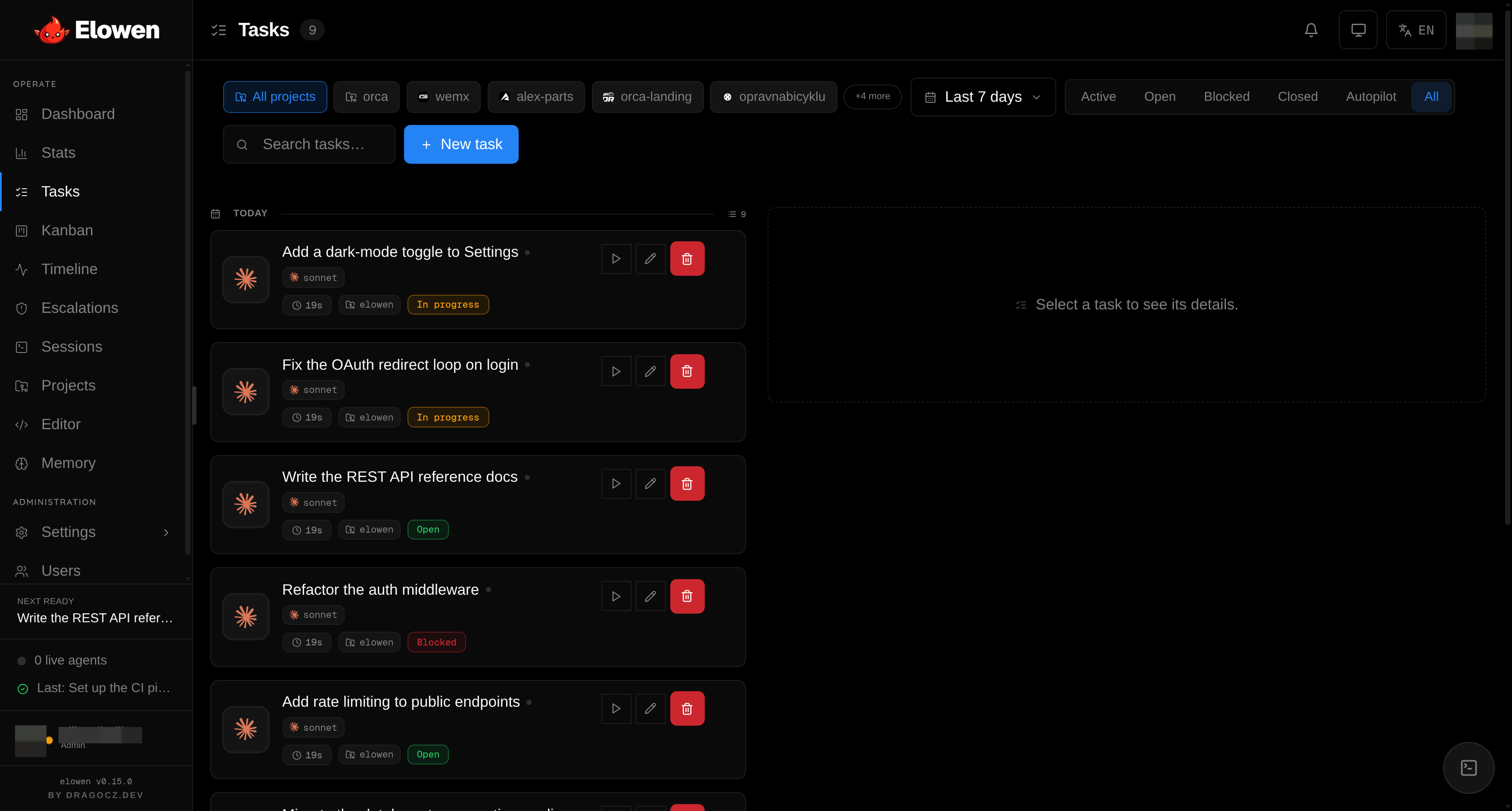
- Day-grouped list — tasks grouped by today / yesterday / date, paginated. Each card shows a model icon, title and ID, a live dot, status/time/project badges, and quick run controls. Hover for the action menu; right-click for a context menu.
- Epic rows that ARE missions — collapsible rows with a progress ribbon, done/total count, lifecycle pills (Engage / Pause / Resume / Disengage), and rolled-up cost. Missions that open a pull request show link/open/merge PR pills.
- Task detail drawer — a right-side pane with the live agent output, description, phases, dependencies, executor, diffs, commits, usage, and result summary, plus launch/edit/close actions.
- Task modal — create or edit a task: title, details, type, priority, executor (model pills with brand icons), schedule, dependencies, and project picker.
- Plan modal — turn a goal into an autonomous mission: goal input, autonomy L0–L3 (see Agents & Autonomy), max sessions, PR-workflow toggle, a manual phase list, an auto-model toggle, and a live Pilot preview of the plan.
Deep-links: ?new=1 opens the create modal, ?select=<id> opens a task's detail drawer.
Kanban
/kanban — the same work as boards and a calendar.
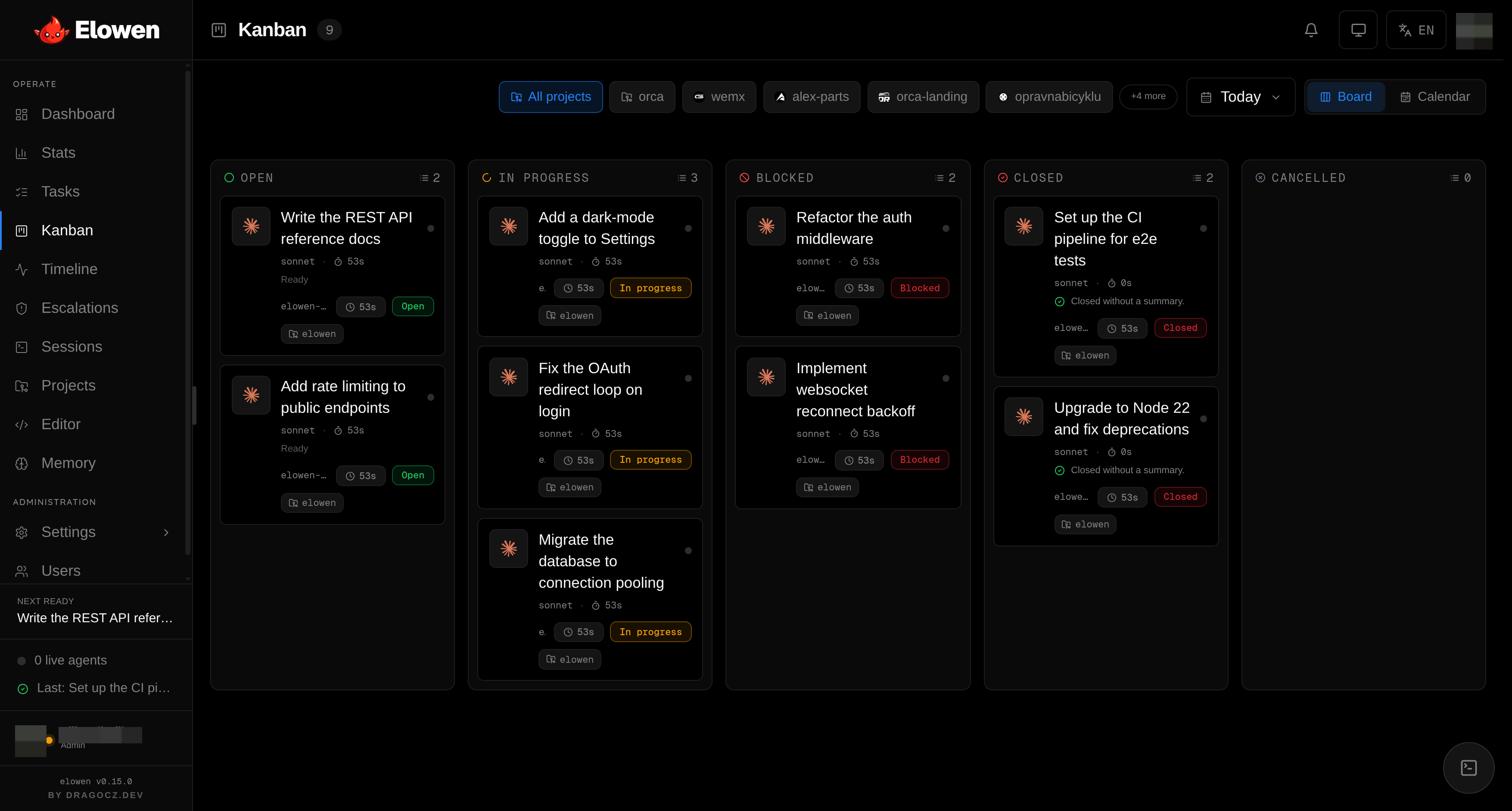
- Board — columns for open / in-progress / blocked / closed with drag-and-drop. Epic cards render as missions with a progress ribbon and expandable phases.
- Calendar — day, week, and month views. Drag a task to another day to reschedule it. Missions and scheduled work appear here too, so you can plan the agent's timeline visually.
Sessions
/sessions — live tmux agent sessions with a real-PTY terminal. This is where one-click intervention lives.
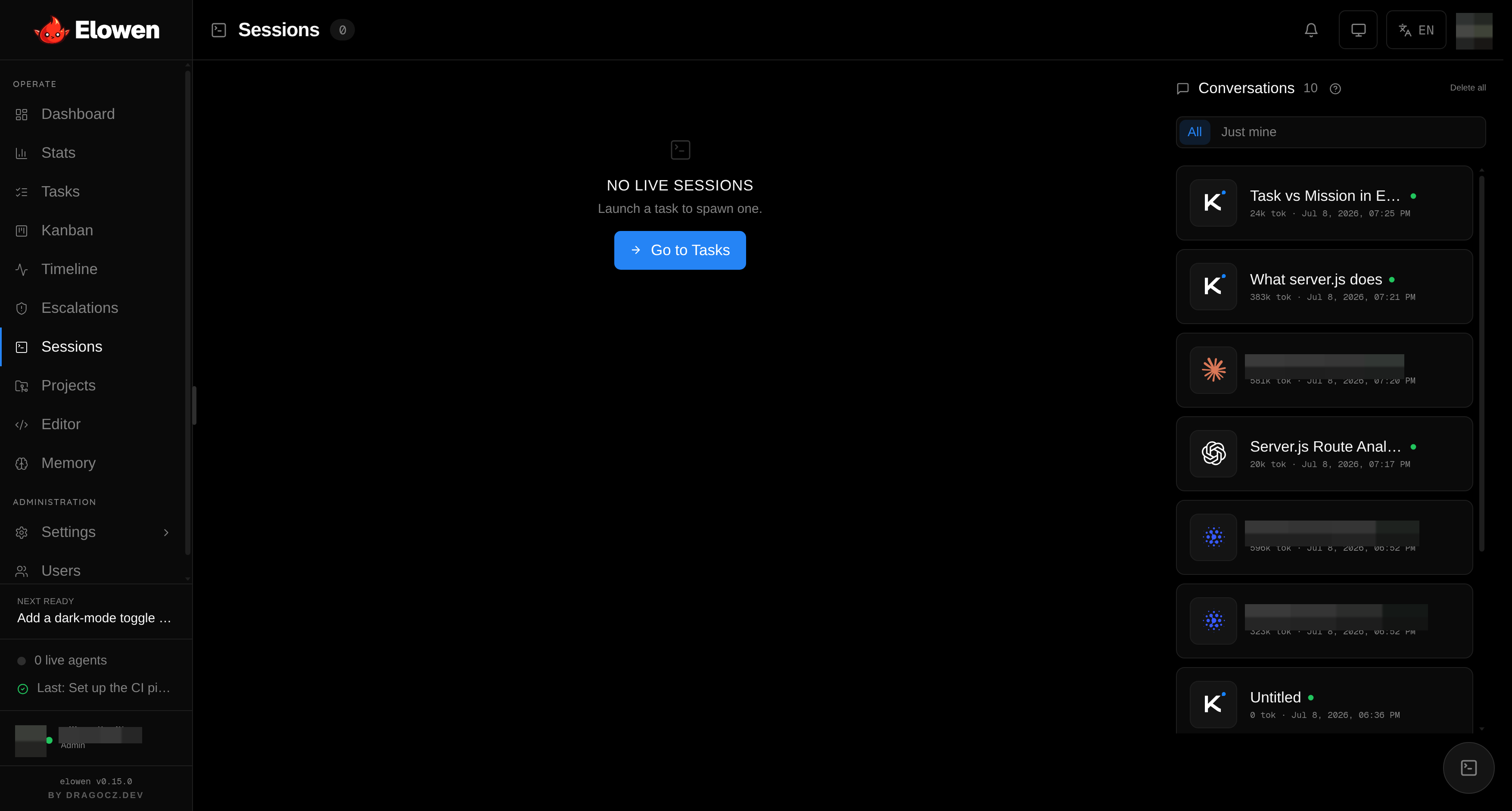
- Filter — All / Needs input, so you can jump straight to sessions waiting on you. Cards sort needs-input first, then working, then the rest.
- Density toggle — Comfortable / Compact.
- Session cards — live status dot, model icon, live token usage, and an ANSI-colored live tail of the agent's output. Overseer and pilot (autopilot) sessions render alongside task workers. A closed session collapses to its outcome badge and result summary.
- Signal-aware controls — on a
needs_inputsession, Allow / Reject buttons appear for a yes/no ask, or one button per choice when the agent asked a multiple-choice question — you answer inline without opening the terminal. - Per-card actions — Interrupt (send Ctrl-C) and Kill, plus a right-click context menu.
- Terminal modal — a full real-PTY terminal for one-click intervention: type directly into the agent's session, then pop the terminal out into its own window when you want a bigger workspace.
- Brain conversations rail — a side panel listing brain chat sessions, each clickable to open or continue in the web chat. A regular user sees only their own; an admin defaults to every user's (oversight) and can toggle to just theirs, with delete and delete-all.
Timeline
/timeline — a live activity feed plus commit history, so you can trace exactly what the agent did and when.
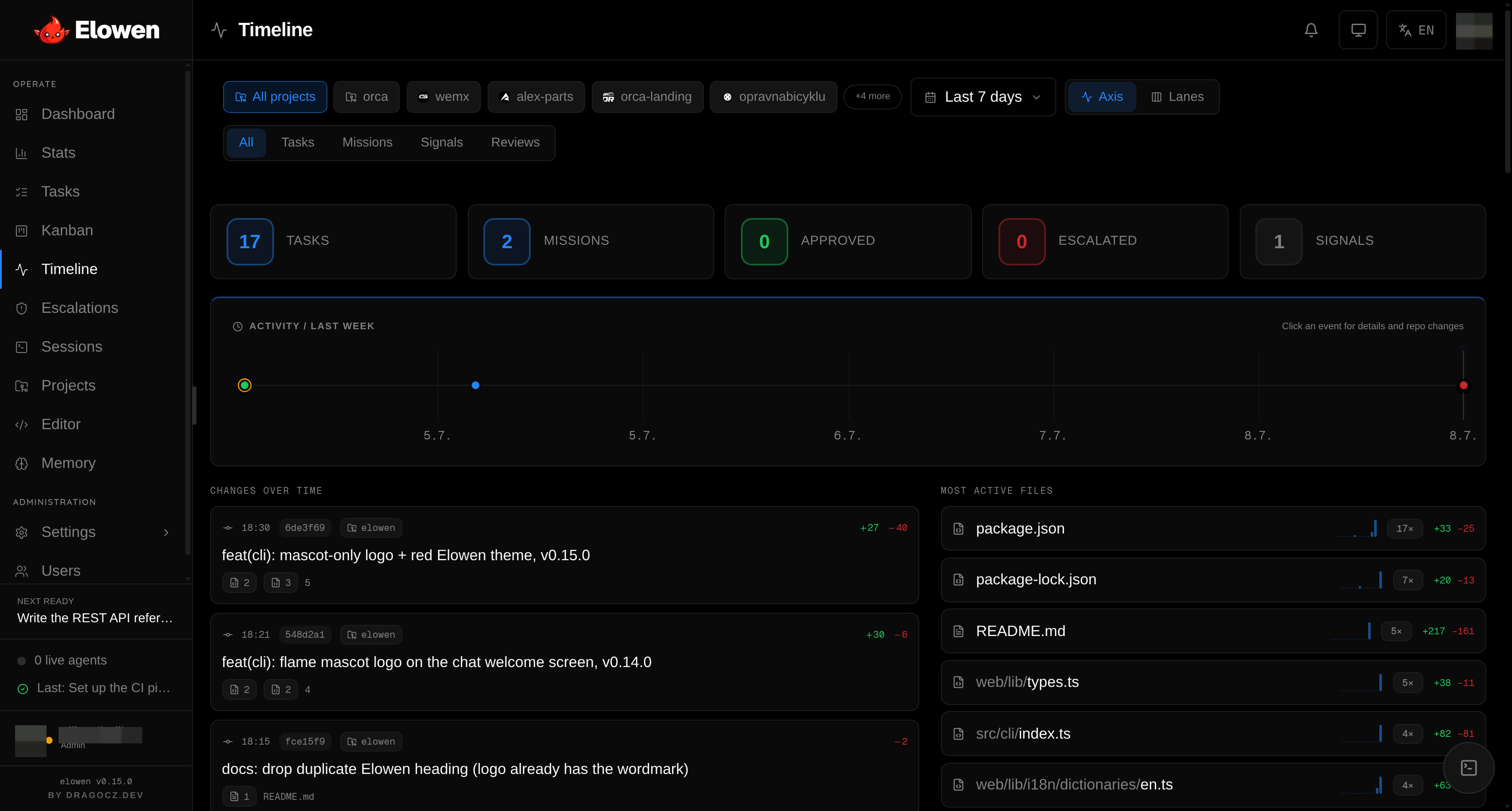
- Axis — a horizontal dot plot, dot size by frequency, hour gridlines, and hover tooltips.
- Swimlanes — per-target tracks for agents, sessions, and tasks.
- Feed — collapsible event groups with ANSI-colored live tails.
- ChangesOverTime — a commit stream with a file-type breakdown, most-active files, sparklines, and clickable diffs.
Escalations
/escalations — the human-in-the-loop gate. When the agent hits a decision it may not take on its own it lands here, in two flavours:
- Agent questions — an agent is actively blocked on a free-text question; type an answer and it unblocks. These come first, since a worker is waiting on each.
- Overseer escalations — a rejected phase with the overseer's full rationale and the phases it blocks. Approve to release the review gate (letting the mission continue), or Re-run the rejected phase.
The inbox self-clears once each item is resolved. This is the low-friction way to keep authority over an autonomous run without babysitting it. Related: Agents & Autonomy.
Projects & Editor
/projects and /editor — the git repositories the agent works in, and a full code editor to inspect or edit them yourself. See Projects & Workflow for the end-to-end flow.
Projects
- Project cards — slug, path, and git status (branch, clean/dirty, ahead/behind).
- New / Edit project — path, notes, and PR-workflow toggle.
- Git section — branches and recent commits.
Editor — a self-hosted Monaco editor:
- File tree with changed-file highlights and a context menu.
- Multi-file tabs with a dirty-state indicator.
- Edit and diff modes (working changes vs HEAD), plus a patch view for commits.
- Image and Markdown preview.
- File operations: new, rename, duplicate, delete.
Memory
/memory — the brain's memory module, where you inspect and curate what the agent remembers. Browse events and embeddings, explore the glass-brain map, and merge or purge entries. See Brain & Chat for how memory feeds the agent's replies.
Stats
/stats — usage, tokens, and cost.
- Summary cards — total cost, total tokens, cache tokens, models used.
- Cost by model — per-model rows with icon, a proportional bar, and token counts.
- Admin reset — wipe usage snapshots (confirmation required).
Settings
/settings — the Config hub, admin-only. Everything the agent may do is set here, and every capability is an add/remove-able plugin — Elowen is modular to the core. The ten categories, in order:
| Category | What it controls |
|---|---|
| Models | Enable/disable executor presets, add custom models, model descriptions for autopilot |
| Providers | Binary paths, extra args, skip-permissions and resume toggles per coding-agent CLI |
| Defaults | Default executor, autonomy, max sessions, token TTL |
| Brain | Provider management and OAuth account connect for the embedded agent |
| Memory | Embedding provider and model, categorization model |
| Plugins | Enable/disable plugins and edit each one's config; install/update/uninstall via the marketplace |
| Autopilot | Automated planning/execution mode, model selectors, planner prompt |
| GitHub | Token, PR defaults, auth status |
| System | Version info, update button, service health and restart |
| Data | Danger zone — delete all data |
For depth, see Configuration and Plugins.
Users (RBAC & per-user tools)
/users — full role-based access control, admin-only. This is a headline of Elowen: each user can have a different set of tools and permissions.
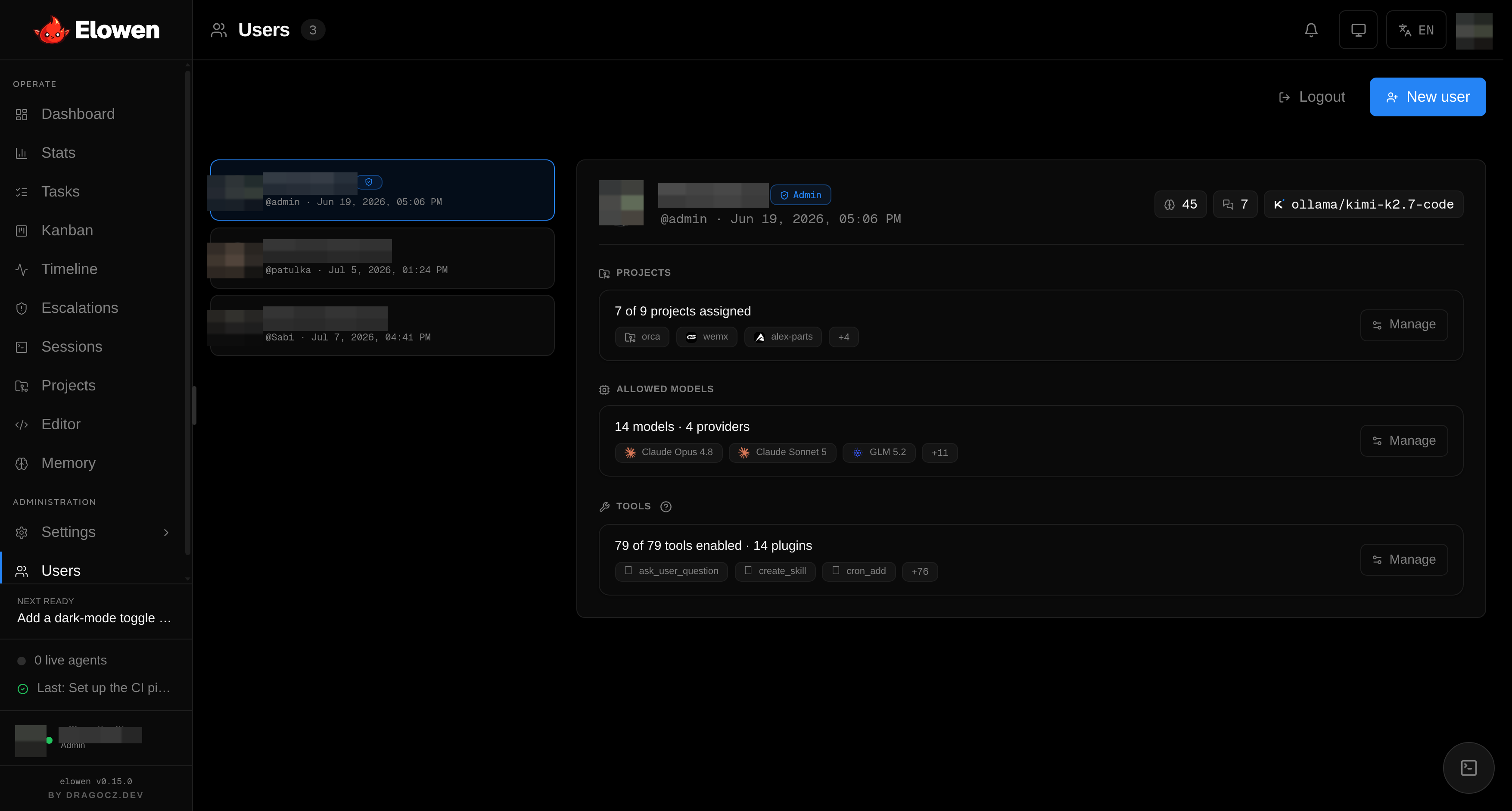
- Roles — admin or member. The first user ever created is the admin; the last admin cannot be demoted or deleted.
- Per-user tool access — turn individual brain tools off for a specific user (
disabled_tools). The user's detail pane shows their effective access as ToolPills, so you can see at a glance what that person's agent can do. This is the "per-user tools" model — grant one user terminal + files and another only chat. - Per-user model allow-list — restrict which executors a user may run (
allowed_execs). - Per-project assignment and visibility — scope each user to specific projects (
user_projects), controlling both what they can touch and what they see.
Set one person up as a power user with full tools across every project, and another as a chat-only member scoped to a single repo — from the same screen. See Account & Security for the full RBAC depth.
Account
/account — your personal settings, organized into tabs:
- Profile — avatar, name, email, UI scale, default model.
- Security — password change.
- Notifications — push notifications per device.
- CLI — brain model, vision model, reasoning effort, communication style, Discord ID linking, and auto-compact threshold.
- Memory — auto-recall and auto-save toggles, per user.
- Prompts — your own overrides of the built-in prompt templates.
© 2026 Elowen · MIT Licensed
Reference on GitHub