
CLI
The elowen CLI is a second way to talk to and drive the same agent — this time from
your terminal. Everything you can do from the Web UI has a command-line
counterpart: chat with the Brain, inspect and close tasks,
drive missions and autopilot, and manage the daemon. It is the
low-friction, scriptable surface of the agent — one small binary, sensible defaults,
no ceremony.
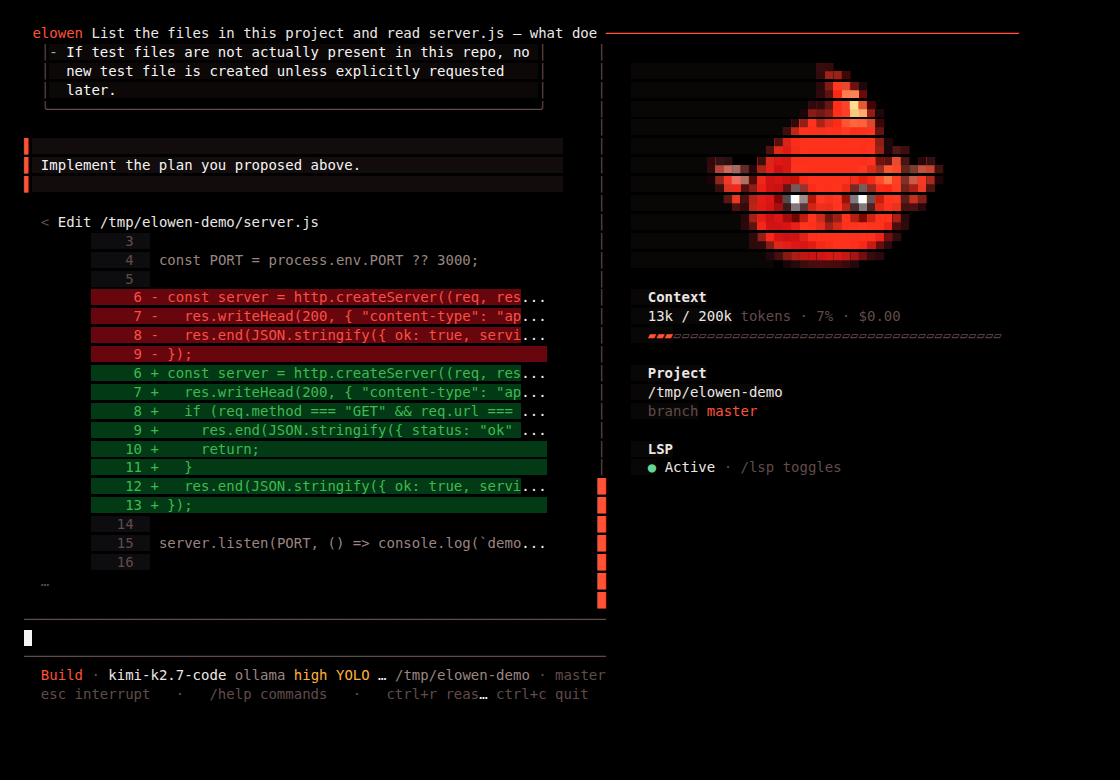
The CLI connects to the daemon over its REST API. If the daemon is not running, the
CLI auto-starts it for you (set ELOWEN_AUTOSTART=0 to disable that and manage the
daemon yourself).
Launch & login
npm install -g elowen   # installs the `elowen` command
elowen setup                 # guided wizard: account, project, AI provider, memory, LSP
elowen                       # bare `elowen` in a terminal opens the chat TUI
elowen setup is the onboarding wizard — account, project, AI provider (sign-in or API
key), memory, and the optional TypeScript language server. It's skippable and
reversible, and safe to re-run any time (--reset to start over); in a non-interactive
shell it just prints Run: elowen setup and exits rather than blocking a script. A
one-time, root-level elowen install provisions a full server deployment instead —
systemd units, a reverse proxy, and the first admin account.
Once you have an account, elowen with no arguments — in a terminal — opens the chat
TUI directly (the same as elowen chat). The first time a terminal has no cached
token, it prompts for your username and password and caches a token at
~/.config/elowen/cli.json (mode 0600), so every command after that runs without
re-authenticating. Run elowen login any time to (re)authenticate explicitly, or set
ELOWEN_TOKEN to skip the prompt entirely (handy for CI and scripts).
Chat basics
elowen chat                  # open the interactive Elowen chat
elowen chat --new            # start a fresh conversation
elowen chat --session <id>   # resume a past conversation
elowen chat --model <id>     # pick a model for this session
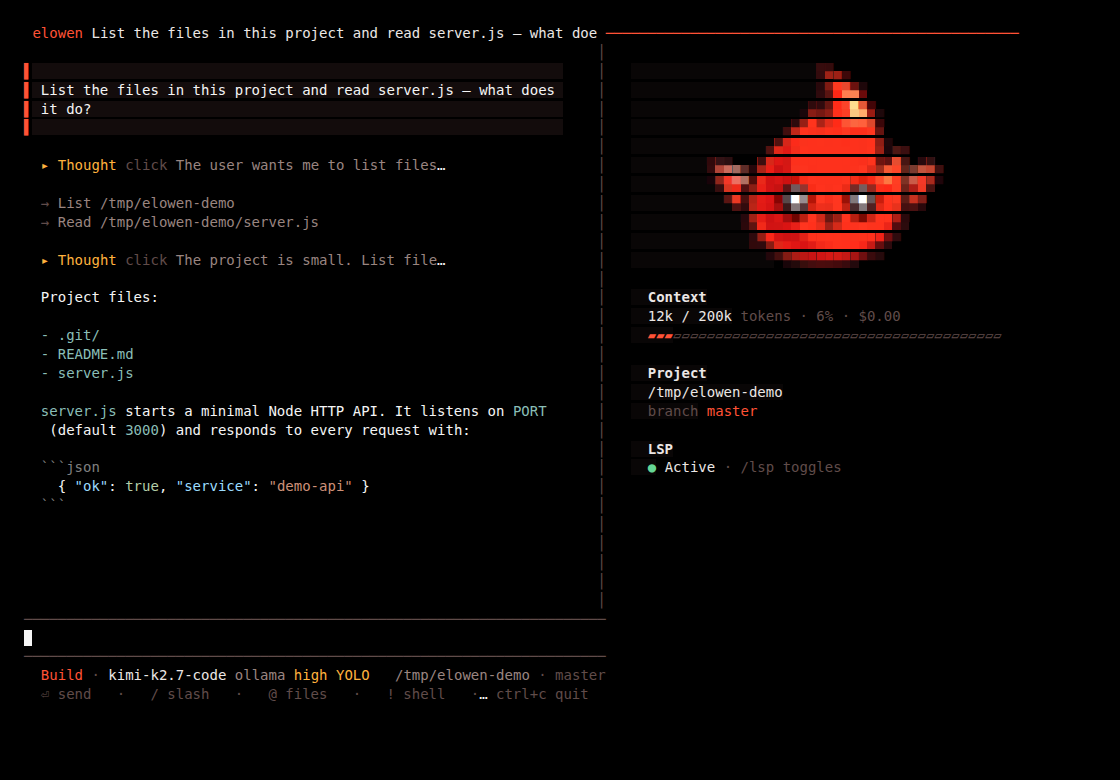
Inside the chat, you're talking to the same Brain as the web dock, Discord and WhatsApp — same reasoning, same tools, same memory, just a different surface. The layout is an opencode-style TUI: a scrollable transcript on the left, a telemetry panel (context usage, project, branch, LSP status) on the right, and a status/hint bar along the bottom.
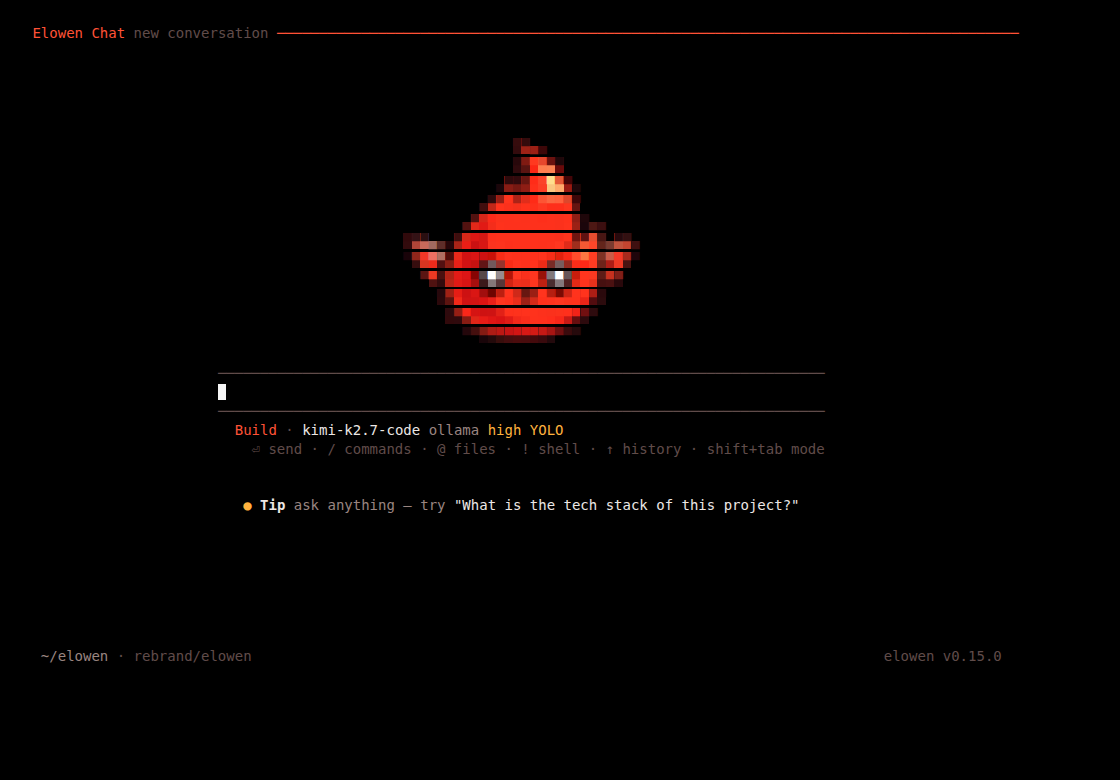
Tool calls render dim — they're secondary to the assistant's answer. A finished
tool call with nothing more to show collapses to a single line ($ <command> · done,
or a glyph + title for reads/edits/searches); one with output shows the command echo,
a status line, and the body, with long output collapsible ("Click to expand"). File
edits render as a git-style diff with a stable line-number gutter.
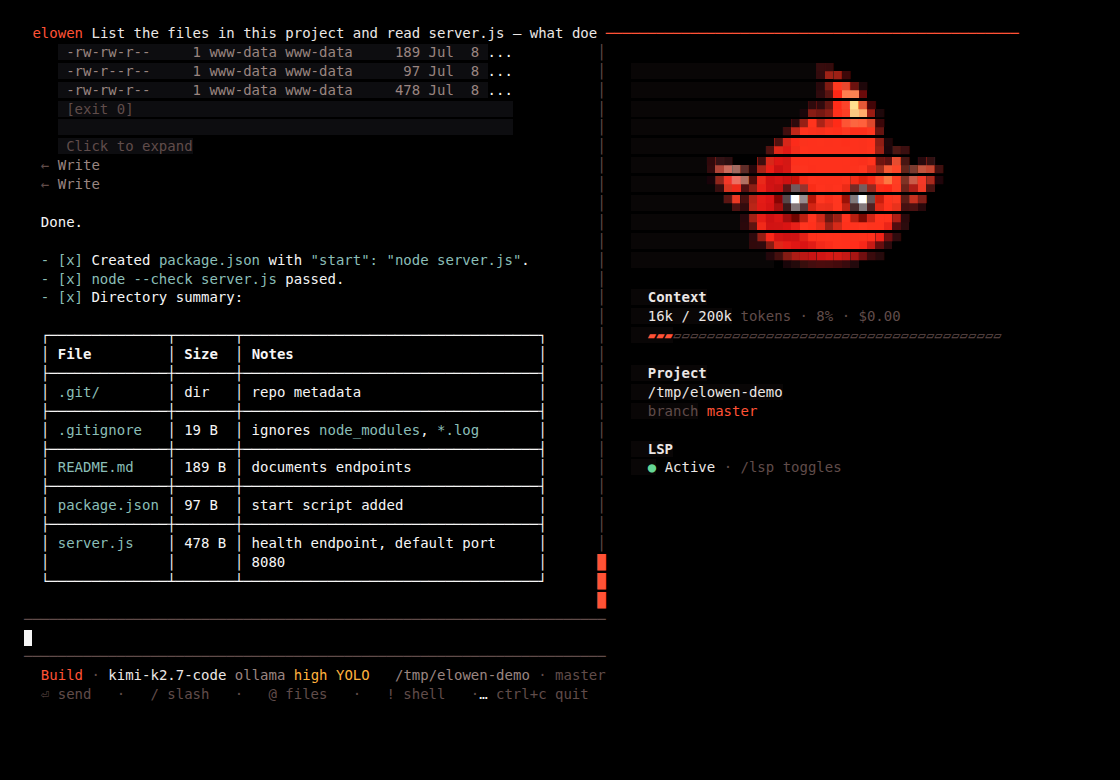
The tools the agent can reach in a CLI chat are still governed by RBAC: your account's per-user tool access and per-project visibility apply exactly as they do in the web UI. The terminal is a different door into the same agent, not a way around your permissions. See Account & Security.
Models
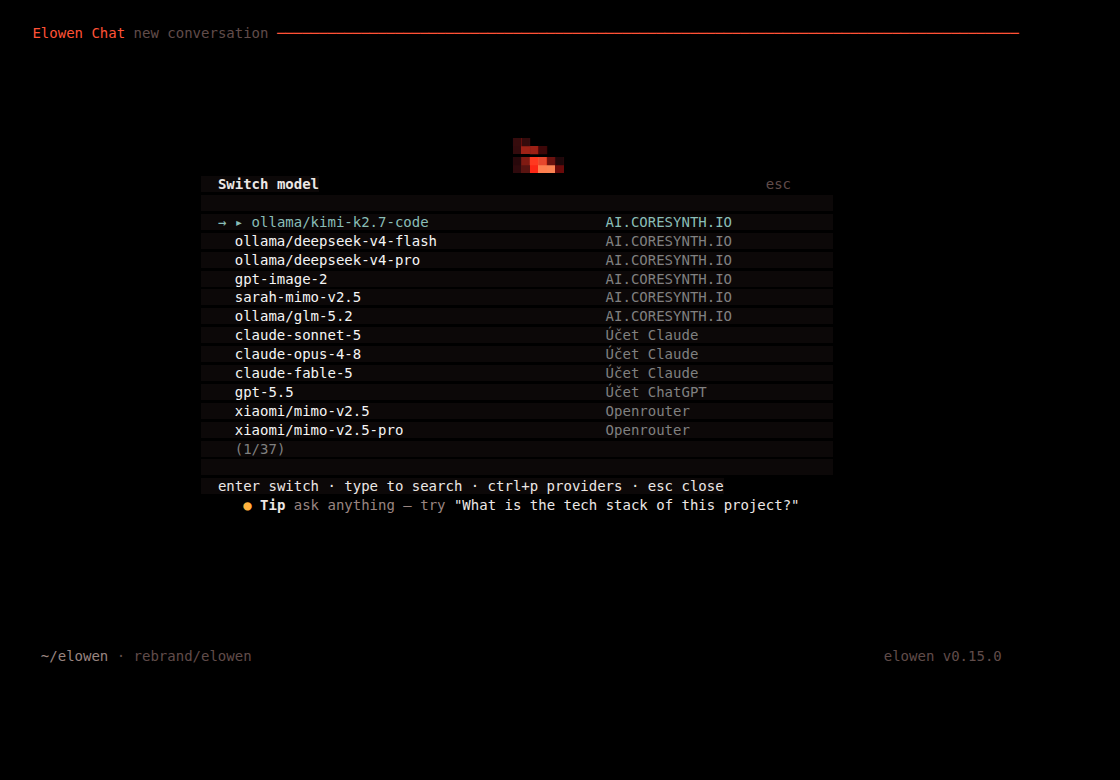
/model opens a picker of every model available to you — configured providers,
auto-fetched catalogs, and OAuth-connected accounts (Claude, GitHub Copilot,
ChatGPT/Codex) — with type-to-search and the current model floating to the top. Press
ctrl+p inside it to switch providers instead. See Brain & Chat
for how the catalog is assembled.
Reasoning & Thought rows
When the model streams reasoning, it renders as a collapsed Thought row with a truncated first line — click it to expand the full reasoning text.
/reasoningopens a picker of the current model's thinking levels (minimalup toxhigh);/reasoning <level>sets one directly.ctrl+rcycles the reasoning level in place without opening a picker./reasoning showtoggles Thought rows on/off for this account. The setting is saved server-side (mirrored by Account → Terminal's "Show reasoning in CLI" toggle), with a local fallback so it still works offline.
Slash commands
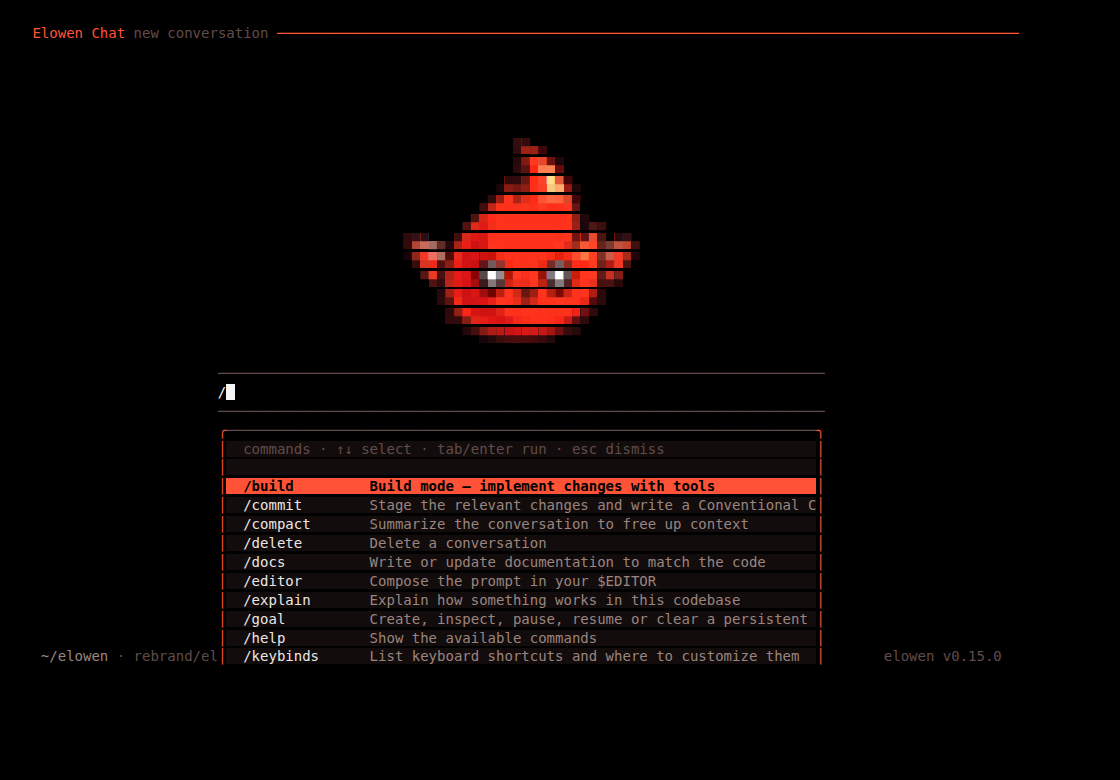
Type / to open the command menu — arrow keys or type-to-filter, Tab completes the
highlighted command into the input (with a trailing space, ready for arguments),
Enter runs it immediately.
| Command | Description |
|---|---|
/new | Start a fresh conversation |
/stop | Stop the running agent |
/status | Session info — model, context, cost, cwd, git branch, goal status |
/mcp | Inspect MCP servers, their tools and reconnect health |
/skills | Inspect and manage loaded skills |
/goal | Create, inspect, pause, resume or clear a persistent goal |
/subgoal | Add or remove persistent-goal subgoals |
/tools | Inspect active plugin tools and their owning plugin |
/compact | Summarize the conversation to free up context |
/plan | Switch to Plan mode — think through the approach before editing |
/build | Switch to Build mode — implement changes with tools |
/yolo | Auto-approve tool asks for this session (on/off, or toggle) |
/model | Switch the AI model (type to search, ctrl+p for providers) |
/reasoning | Set the reasoning effort · show toggles Thought rows |
/theme | Switch the terminal colour theme |
/paste | Attach an image from the system clipboard |
/editor | Compose the prompt in your $EDITOR |
/lsp (admin) | Language diagnostics — status, install/uninstall servers, on/off |
/restart (admin) | Restart the Elowen daemon |
/help | Show the available commands |
/sessions | Pick a conversation to resume |
/resume | Resume a conversation |
/delete | Delete a conversation |
/quit | Exit |
Plugins can contribute their own /command prompt macros (they can't shadow a
built-in name) — see Plugins. This table is generated from the single
source of truth every surface renders from (src/brain/slashCommands.ts), so the CLI
menu never drifts from what's actually wired up.
Keys
| Key | Effect |
|---|---|
Enter | Send the message (or run the highlighted item in an open menu) |
shift+tab | Toggle Plan ↔ Build work mode |
ctrl+r | Cycle the reasoning effort in place |
ctrl+s | Stash the current draft; ctrl+s on an empty input pops the last one back |
ctrl+o | Cycle main conversation → sub-agent 1 → sub-agent 2 → … → back to main |
ctrl+p | Toggle the telemetry panel (context/project/branch/LSP) |
ctrl+x | Leader — then a letter opens a picker: h help · t theme · m model · l sessions |
ctrl+c | Quit |
esc | While streaming: interrupt the turn · inside a sub-agent view: close it, no server round-trip · inside a modal: closes/denies it · otherwise: clears the input |
Tab (in the slash overlay) | Complete the highlighted command into the input |
↑ / ↓ | Move selection in a menu, or (in the editor) recall previous inputs |
PageUp / PageDown | Scroll the transcript |
| Mouse wheel | Scroll the transcript |
| Click a Thought row | Expand/collapse the reasoning text |
| Click a sub-agent row | Open that child session's transcript |
| Click the Todos/Sub-agents card header | Collapse/expand it |
| Drag over transcript text | Select text; releasing copies it via OSC 52 (works over SSH too) |
| Drag the panel's left edge | Resize the telemetry panel (36–68 columns) |
The structural keys — Enter, esc, Tab, the arrows, the page keys and the mouse —
are fixed, but every modifier chord above (shift+tab, the ctrl+… shortcuts and the
leader) is rebindable. /keybinds opens an interactive editor: arrow to an
action, Enter to capture the next chord you press (press the
leader first to compose a leader sequence), x to unbind, r to reset to default.
Each change persists to this machine's ~/.config/elowen/cli-prefs.json and applies
live — no restart. The leader chord itself (ctrl+x by default) is just another
rebindable action, and its sequences (leader t/m/l/h) are the second way into
the theme, model, sessions and help pickers alongside their slash commands.
Attachments, mentions & the local shell
The input line does more than send text. Three prefixes shape what actually goes to the brain:
@file mentions. Typing@opens a fuzzy file suggester over the project — git-tracked files in a repo, a bounded walk otherwise — ranked by match quality and frecency (a file you pick often floats up). The picked file rides along with your message: text files (≤256 KB) are attached inline as fenced blocks, images become real image attachments (up to 4 per message). Use@"path with spaces"for quoted paths.@clipboard— or the/pastecommand — attaches an image straight off the system clipboard (needsxclip/wl-pasteon Linux orpngpasteon macOS). The visible transcript keeps your original text; only the composed prompt carries the file contents.!cmdlocal shell. A message starting with!runs as a shell command on this machine (the CLI's own cwd, not the daemon) —!git status,!ls. Its output renders as a console block and is buffered as context for your next prompt, so you can eyeball something without spending an agent tool call on it./editorsuspends the TUI and opens$VISUAL/$EDITORto compose a longer prompt, dropping the text back into the input on save.
↑ / ↓ recall previously sent prompts (persisted per project), and ctrl+s stashes
the current draft to a session-local pocket — handy for "let me ask one quick thing
first"; ctrl+s on an empty input pops the last stash back.
Plan mode
Plan mode lets the agent think through an approach before it touches anything: the
server hides mutating tools and only allows reads, searches, diagnostics and the
todo/question tools. Switch into it with shift+tab or /plan <text>.
When the agent's reply proposes a plan, the CLI renders it as a bordered card and, once the turn settles, opens a "Plan ready" picker:
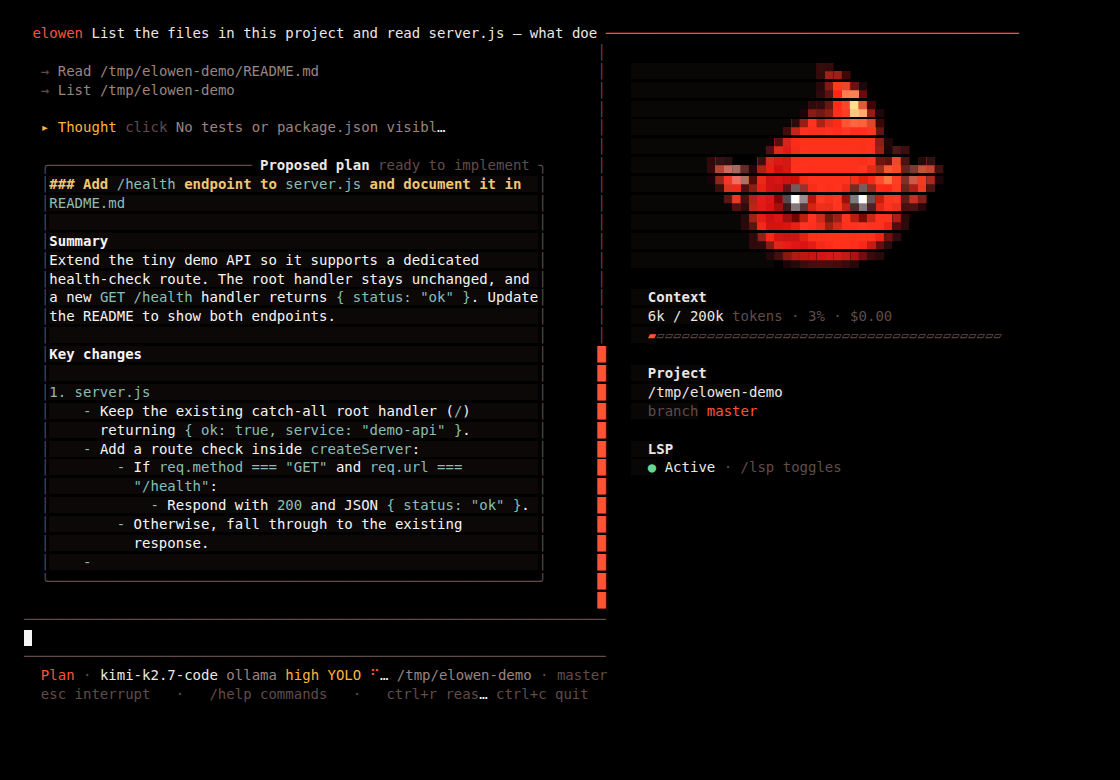
- Implement plan — switches to Build mode and submits "Implement the plan you proposed above." as the next turn.
- Cancel — stays in Plan mode so you can keep refining the approach.
Sub-agents
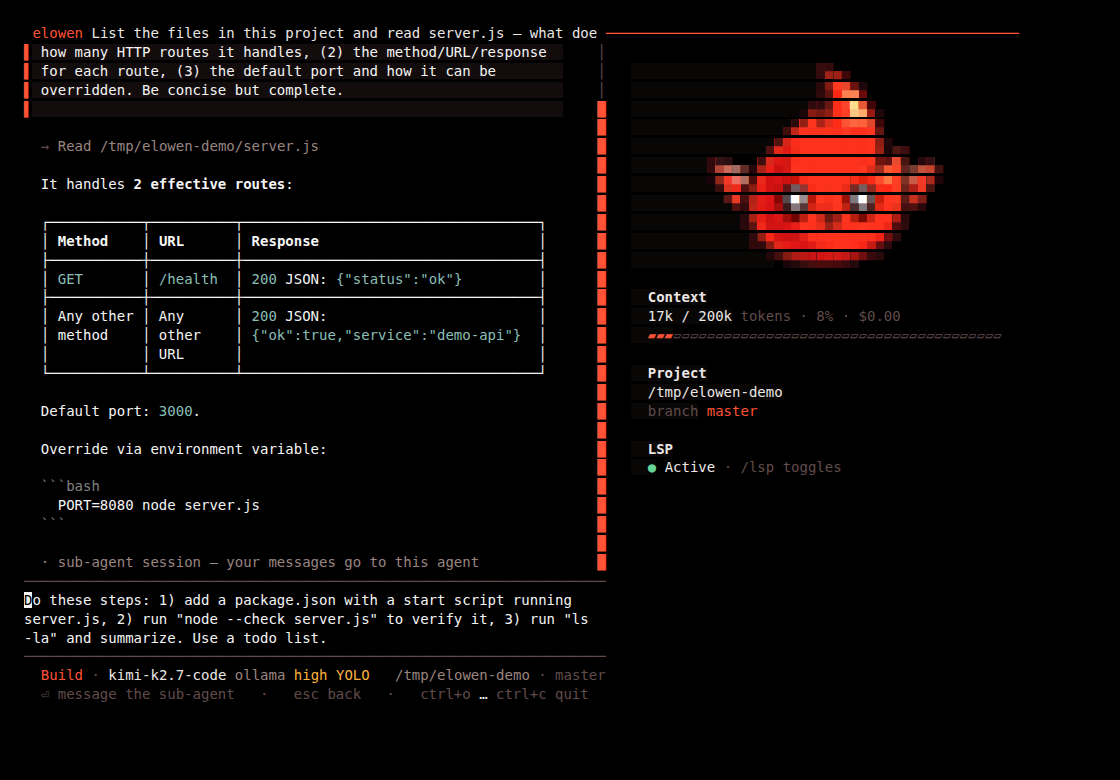
Ask the agent to delegate a piece of work and it spawns a sub-agent — a nested turn with its own tool budget, running in its own session. Each one renders as a live status line in the transcript (spinner while running, a checkmark once it's done, tools/duration/tokens underneath) and, while active, in a Sub-agents panel above the status bar.
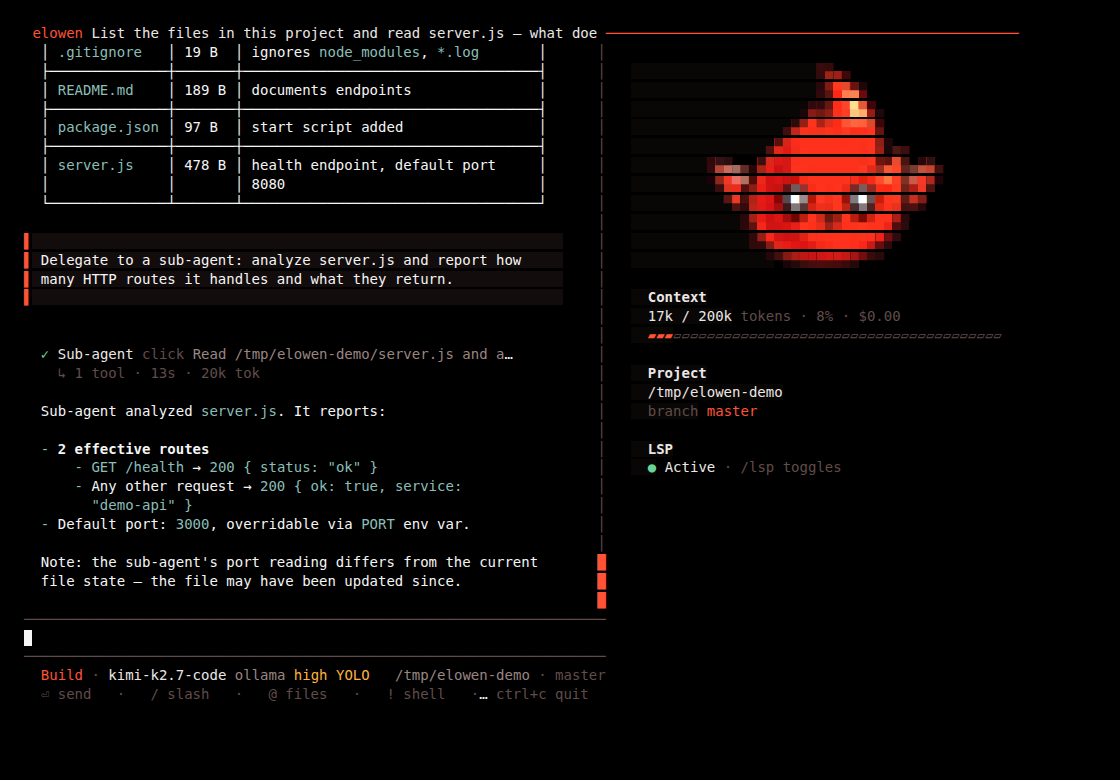
Click a sub-agent's row, or press ctrl+o, to drill into its transcript — your
input while that view is open steers the child, not the parent. esc closes the
child view with no server round-trip; ctrl+o again cycles to the next sub-agent, or
back to the main conversation.
Todos
When the agent tracks multi-step work, it keeps a checklist visible above the status bar — the canonical progress view for the current conversation, alongside whatever tool activity is happening.
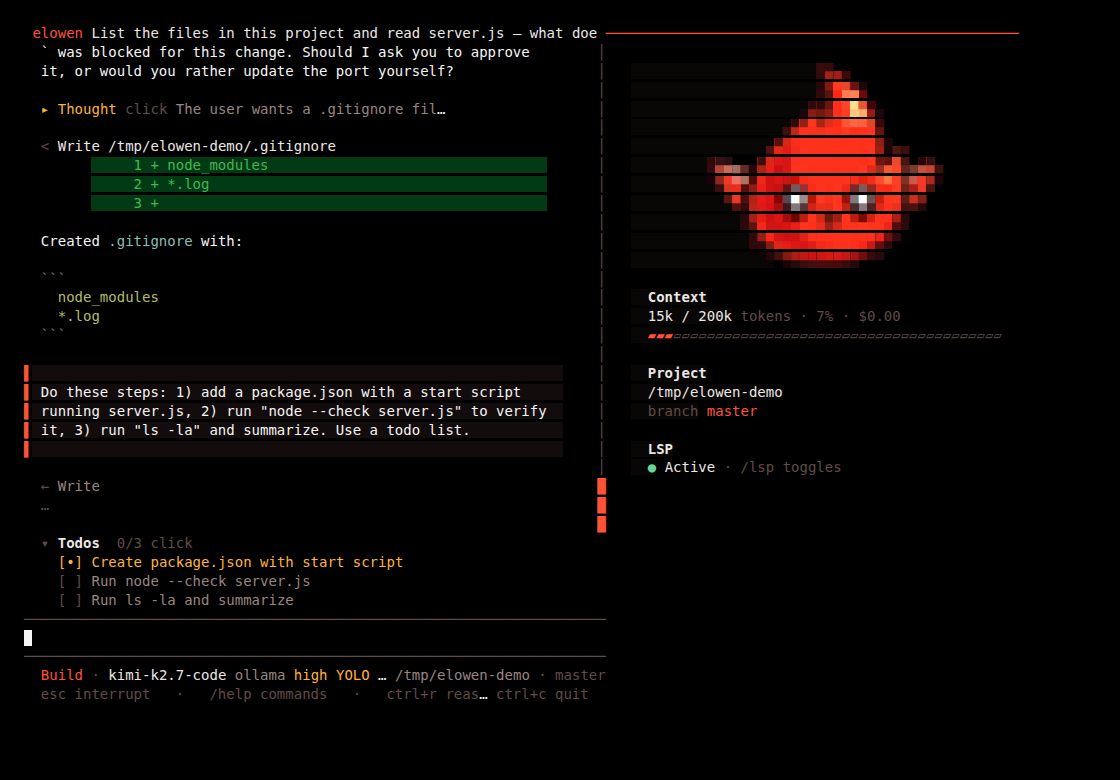
[x] marks a completed item, [•] the one in progress, [ ] a pending one. The
card collapses automatically once every item is done. It's conversation-scoped (not
persisted per project) — the closest way to see it outside interactive chat is
elowen run -p "/status", whose JSON output includes the current cards.
Permissions & YOLO
Every tool call that can change something — running a shell command, writing a file — stops for your approval first. The prompt shows exactly what's about to run and gives you three choices:
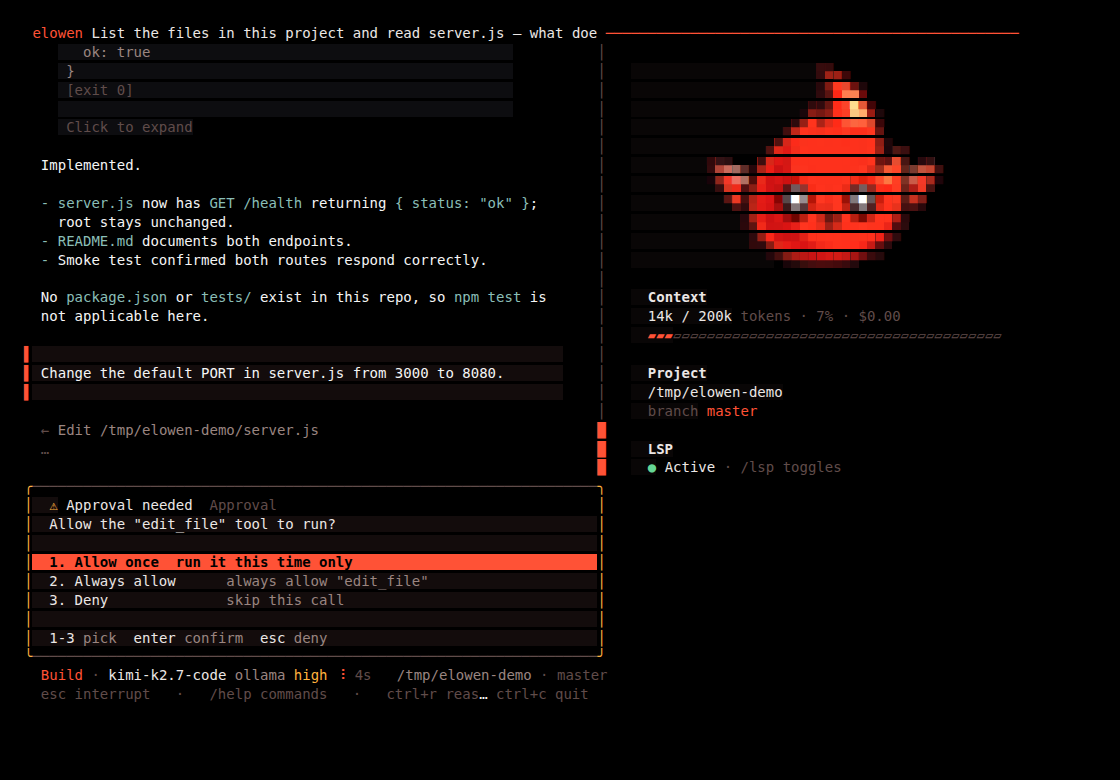
- Allow once — run it this time only.
- Always allow — approve every future call to that tool for this session.
- Deny — skip this call; the agent is told it was denied and keeps going.
1–9 pick an option by number, Enter confirms the highlighted one, and Esc
always resolves to Deny — it never aborts the turn, the tool just reports back
that it was refused.
Approval prompts only exist where a human is attached — the interactive CLI or web
chat. Unattended runs (cron jobs, platform channels, sub-agents) have nobody to answer
them, so an ask rule there resolves to allow by default, while explicit deny
rules always deny. Prefer failing closed? Switch Account → Elowen AI → Unattended
runs to Block: every ask in an unattended run is then denied outright (strict
mode) — and YOLO does not override that.
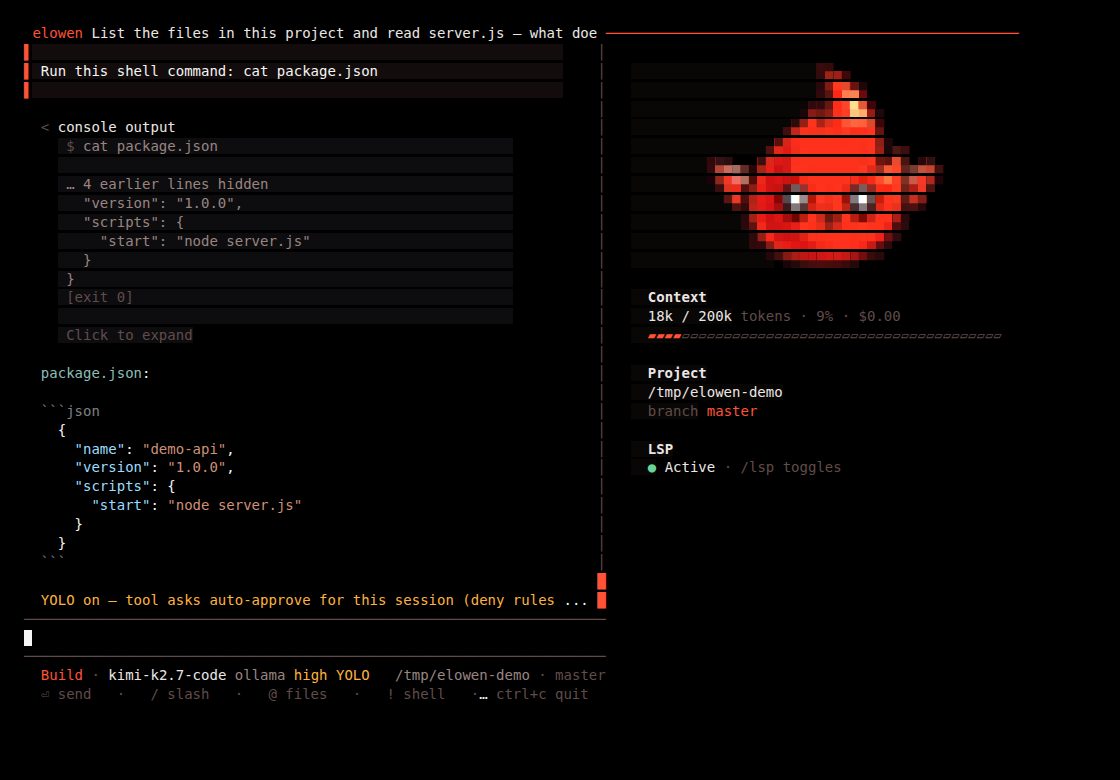
For a fully hands-off session, /yolo (or /yolo on/off) auto-approves every tool
ask — deny rules still apply. It's session-scoped only: the meta line grows a
warning-toned YOLO chip so an unattended session is never silently unsupervised,
and the persisted default (if you want YOLO on by default) lives in web
Account → Elowen AI.
Theming
/theme opens a picker of 15 built-in colour themes (plus Custom, when your web
Account → Terminal palette is set to custom) — pick one and it's saved to this
machine's ~/.config/elowen/cli-prefs.json.
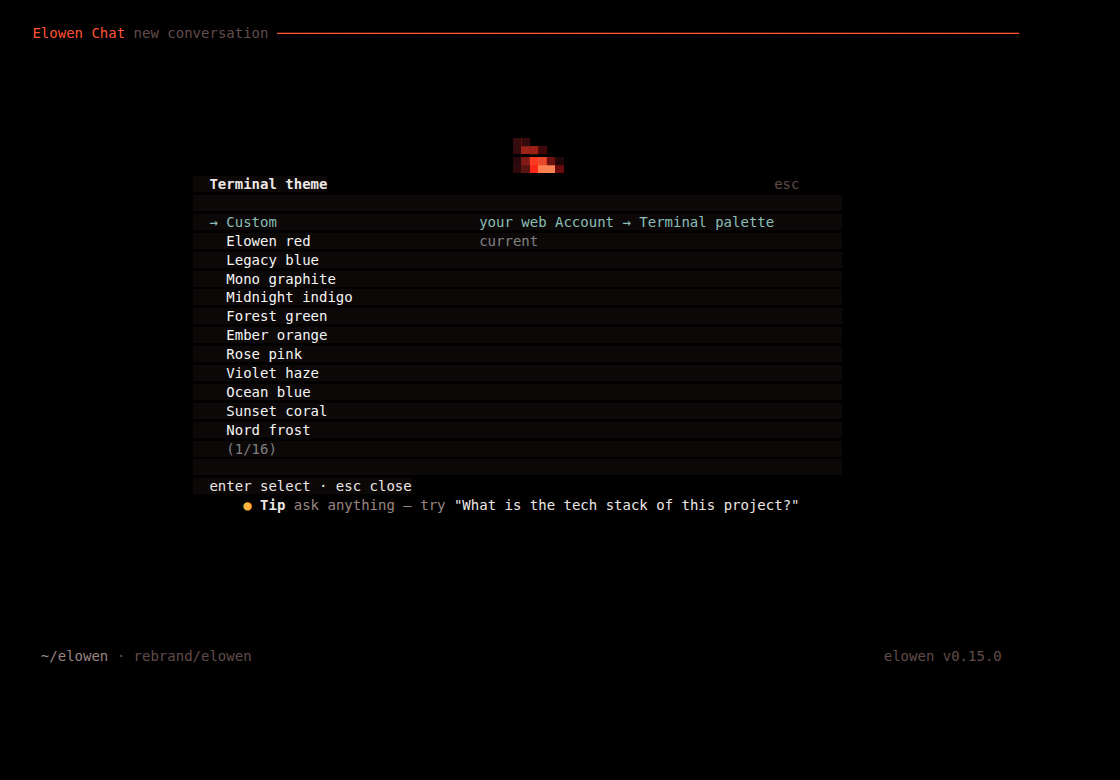
The terminal theme is a property of this terminal (dark themes read differently on
a light one), so a local /theme pick always wins on this machine. If you've never
picked one locally, the CLI instead follows your web Account → Terminal setting —
so picking a palette there is enough to theme the CLI on a machine you haven't
customized yet. /theme <name> applies a theme directly, skipping the picker.
Environment reference
The CLI itself reads three environment variables day to day — the connection settings already covered under Launch & login. In a normal single-machine setup you never touch them.
| Env var | Default | Description |
|---|---|---|
ELOWEN_URL | http://localhost:4400 | Daemon URL |
ELOWEN_TOKEN | — | API token (auto-resolved via login cache) |
ELOWEN_AUTOSTART | 1 | Set to 0 to disable the CLI's auto-start of the daemon |
A few more are read at specific moments rather than daily: ELOWEN_TASK, ELOWEN_PLAN_JOB
and ELOWEN_MISSION are injected by the daemon into a spawned agent (see
Tasks & Missions and Agents & Autonomy);
ELOWEN_PORT/ELOWEN_WEB_PORT override the daemon/web ports; ELOWEN_ADMIN_USER,
ELOWEN_ADMIN_PASSWORD, ELOWEN_API_KEY and ELOWEN_OPENROUTER_KEY feed a non-interactive
elowen setup --non-interactive (from env instead of argv, so secrets never hit shell
history or ps). The daemon itself reads a larger set — database path, bind host,
bootstrap credentials — covered in Configuration.
Daemon lifecycle
The daemon is the REST API on :4400; the web UI runs alongside it on :4500.
elowen up        # start the daemon + web UI
elowen down      # stop them
elowen status    # health check for both
elowen update    # update to the latest npm release and restart in place
elowen menu      # interactive launcher: start/stop/status/update in one place
elowen doctor    # readiness report: what works, and how to fix what doesn't
elowen menu is the interactive front door to all of the above — talk to Elowen, toggle
the services, check status, open the web UI, or update, from one picker. On a box
provisioned with elowen install, it drives systemctl/journalctl instead of
managing its own daemon process, and adds a Recent daemon logs entry.
elowen doctor authenticates (prompting for admin credentials in a TTY, or reading
ELOWEN_TOKEN non-interactively) and prints a readiness report — chat, tasks,
missions, memory, platforms, plugins — with a hint next to anything that's failing.
It exits non-zero when something needs attention, so scripts and agents can branch on
the result.
Non-interactive: elowen run
For scripting and CI, elowen run "<prompt>" (alias elowen -p/--print) runs one turn
non-interactively and exits — no TUI, no prompts.
elowen run "What changed in the last commit?"
elowen run --new "Summarize this repo"          # start a fresh conversation
elowen run -c "Now write a test for that"       # continue the active conversation (default)
elowen run --json "List the open tasks"         # emit every event as JSONL
elowen run --goal "Get the test suite green" --max-turns 20
elowen run -p "/status"                         # run a slash command headlessly
By default elowen run resumes the active conversation, so consecutive calls keep
talking to the same brain — matching the TUI. --new starts fresh; --session <id>
targets a specific one; --list prints your conversations (id, title, model) and
exits. --mode plan/--plan runs the turn in Plan mode. A /slash prompt (e.g.
-p "/goal pause") dispatches that command instead of a chat turn.
Plain output streams the assistant's text to stdout; --verbose also prints
reasoning/tool/step lines to stderr. --json emits one BrainEvent per line to
stdout instead — a session line always goes to stderr so it never pollutes the
stream you're parsing. --timeout <seconds> (default 600) gives up and exits 124.
Other exit codes: 0 ok/done, 1 error, 2 usage, 3 goal paused/hit its turn
budget, 4 goal blocked, 5 a plain turn asked a question and can't proceed without
one.
Tasks & scripting
elowen ls                          # list all tasks (JSON)
elowen ready                       # list tasks ready to run (JSON)
elowen sessions                    # list live agent tmux sessions (JSON)
elowen send <session> "<text>"     # type into a live agent's session and submit
elowen close <id> --summary "..." --outcome ok|fail
elowen api <METHOD> <path> [body]  # raw authenticated REST call, e.g. `elowen api GET /tasks`
elowen send is your one-click intervention from the terminal: type straight into a
running agent's session without leaving the shell (--no-enter stages the text
without submitting it). elowen api gives you the full REST surface for anything that
doesn't have its own command — it reads ELOWEN_URL/ELOWEN_TOKEN from the environment,
the same variables the daemon injects into every agent it spawns, so an agent can
drive any endpoint without a bespoke CLI command.
Missions & autopilot
These are mostly agent-facing — commands a running agent invokes on itself, not ones you type by hand day to day. See Agents & Autonomy for the autonomy levels and the overseer this drives.
| Command | Purpose |
|---|---|
elowen plan submit --phases '[...]' | Submit an autopilot plan (needs ELOWEN_PLAN_JOB) |
elowen overseer poll | Long-poll for the next overseer decision (needs ELOWEN_MISSION) |
elowen overseer decide --id <id> ... | Submit a verdict: --approve / --escalate / --choice <id> / --message "<reply>" |
elowen ask "<question>" | Free-text Q&A with the autopilot (needs ELOWEN_TASK); --history prints past exchanges |
elowen note add <missionId> "<text>" | Leave a handoff note for the next phase of a mission |
elowen note ls <missionId> | Read a mission's handoff notes, oldest first |
To kick off an autonomous, multi-turn goal from the CLI yourself, use
elowen run --goal "<text>" (or /goal <text> inside chat) — a persistent goal on
the brain that runs until it settles, pauses or gets blocked. That's a single-agent
mechanism, distinct from mission/epic autopilot (which is driven server-side and
exposed through the agent-facing commands above, or from the Web UI).
Auth
elowen login        # authenticate and cache a token
elowen sessions      # list live tmux sessions you can attach to or intervene in
elowen login caches a token at ~/.config/elowen/cli.json so subsequent commands run
without re-authenticating.
© 2026 Elowen · MIT Licensed
Reference on GitHub