Users & Access
Elowen is a personal AI agent that reasons, edits files, runs commands and works across chat platforms on behalf of your users. An agent with that much reach has to be locked down properly: every request is authenticated, every user gets exactly the tools and models you grant them, and every action is scoped to a project. This page is for the admin managing who can do what.
You always know who can do what — the Users page shows each person's effective tools at a glance — and the defaults are safe, so you can hand access to a teammate without wiring anything up by hand.
Authentication
Elowen uses Bearer token authentication on every API request except the
health check and login endpoints. The daemon exposes its REST API on :4400;
send the token on every call and it resolves to a user and a scope before
anything runs.
Authorization: Bearer <token>
Web UI auth (BFF proxy)
The web UI on :4500 never sees the daemon token. It talks to a same-origin
/api BFF (backend-for-frontend) proxy backed by an httpOnly session
cookie, and the proxy injects the daemon bearer from the cookie server-side —
the powerful daemon token never reaches client JavaScript, so it can't be read
by an XSS payload or a browser extension.
Token scopes
Not every token is equal. Elowen resolves two effective scopes so a spawned agent can never act with your full rights.
| Scope | Purpose |
|---|---|
full | Interactive user sessions (web UI, CLI) — full access |
agent | Spawned workers, overseers, and pilots — a restricted allow-list, confined to their project |
Agent-scoped tokens are confined to their project: a worker can only close its
own tasks and cannot reach across to another project. Advisor credentials are
stored separately from login tokens but resolve to the owner's full access, so
rotating an advisor never invalidates the user's login session.
Session token lifetime
Login tokens are not eternal. Every token carries a time-to-live — 30
days by default, set globally under Settings → Security
(security.tokenTtlDays, minimum 1 day) — and the daemon rejects it once it
expires. On login the daemon returns the TTL alongside the token, so the web BFF
pins its httpOnly session cookie to exactly that window: cookie and token expire
together, no drift.
Login & password policy
A successful login returns a bearer token. Login is rate-limited to 10
attempts per 5 minutes per IP (Elowen prefers the x-real-ip header over
x-forwarded-for), which blunts brute-force attempts.
Password policy:
- Minimum 8 characters.
- Changing it requires the current password — a hijacked session can't silently rotate the password without knowing it.
You can set an initial admin at first boot with the ELOWEN_BOOTSTRAP_USER and
ELOWEN_BOOTSTRAP_PASS environment variables (see Configuration).
RBAC: roles
Elowen ships full role-based access control. There are two roles:
| Role | Access |
|---|---|
| Admin | Everything — all projects, all users, all settings |
| Member | Only assigned projects — tasks, sessions, activity, editor |
Roles are the coarse layer. The powerful part is what sits underneath them: each user can have a completely different set of tools and permissions.
Per-user tools & models
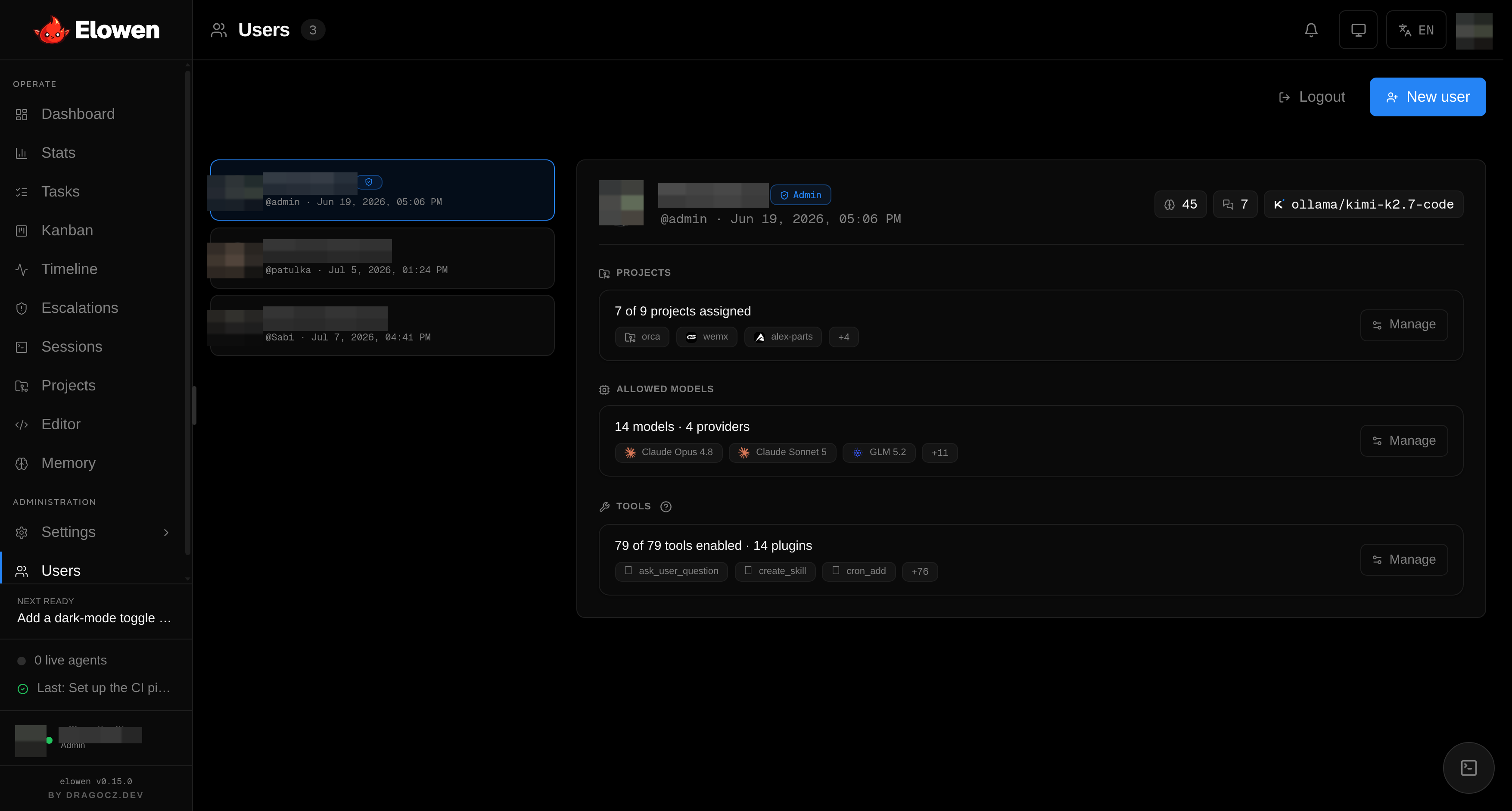
Beyond the admin/member role, an admin controls two allow-lists per user on the Users page:
- Per-user tools (
disabled_tools) — turn individual brain tools off for a specific person. Every capability in Elowen is a tool (Plugins register them): grant one userterminal+filesand give another only chat. Disableterminalfor a junior member and they simply won't have shell access, no matter what they ask the agent to do. - Per-user models (
allowed_execs) — restrict which executors that user may run, narrower than the globalallowedExecsin Settings. An empty list means "unrestricted within the global list" — you widen access by adding entries, not by leaving it blank.
The Users detail pane renders each user's live tool access as pills, so you see the real, computed result of role + disabled tools without reasoning it out. Give one teammate a full engineering toolkit, another a chat-only account, all from one pane, all auto-saved.
Project assignment & visibility
Members don't see anything until you say so. Assignment is admin-only, done on the Users page.
- A member must be explicitly assigned to a project to work in it. An unassigned member sees a blank dashboard — safe by default.
- Assignment also scopes visibility: a member sees only the projects, tasks, sessions and activity for the projects they're on — work stays isolated between people who shouldn't see each other's repos.
Assignments are removed cleanly when a user is deleted, so you never leave orphan grants behind.
Granular tool permissions
Disabling a tool outright is the blunt instrument. The sharp one lives in Account → Elowen AI → Permission rules: for the tools a user does have, you decide per pattern whether a call runs, asks, or is refused:
| Action | Effect |
|---|---|
| allow | Runs immediately, no prompt |
| ask | Pauses for a human approval prompt where one is attached (owner chat); otherwise follows your unattended-asks setting |
| deny | Returns an error to the model — the call never runs |
Rules live in two pattern spaces. tools rules match a tool by name
(e.g. Write); bash rules match the command string of the shell tool
— so git * can be allowed while rm * is denied, even though both run through
the same Bash tool.
The built-in defaults are conservative but frictionless: read-only tools are
allowed, file edits (Write, Edit) ask, and shell commands ask except
for a small read-only allow-list (git status, git diff, git log, ls,
cat, grep, pwd, which). Your rules append after those defaults and
resolution is last-match-wins — any rule you add overrides a built-in. Put a
catch-all like * first, then narrow.
- Self-service editor — the Permission rules card lists your rules with an add row (pattern + allow/ask/deny); changes persist immediately.
- "Always allow" writes a rule — picking Always allow on an approval
prompt appends the matching pattern (e.g.
git status --porcelain→git status*), so grants you make in chat show up here. - Chaining can't be smuggled — a shell line is split into simple commands
and each is gated on its own, taking the most restrictive decision. An allow
for the first program can't wave through
cat x && rm -rf ~.
YOLO mode
YOLO flips every ask to allow without prompting (a deny rule still
denies). Set your persisted default with the YOLO toggle in Account → Elowen
AI — it applies to new sessions. Inside a running elowen chat session the
/yolo command overrides it just for that session. Auto-approving tool runs
is a real security trade-off — hence the standing warning on the toggle.
Unattended-asks (strict mode)
An ask only pauses when a human is parked on the approval prompt — the owner's
CLI or web chat. On an unattended turn (a chat platform, a cron run, a
spawned subagent) there's nobody to ask, so what happens is your call:
- allow (default) — an
askresolves to allow, keeping autonomous work moving. - deny (strict mode) — an
askis refused outright: a hard safety opt-in that YOLO never overrides.
Web push security
The push channel that powers notifications is scoped and self-maintaining: VAPID keys are auto-generated on first boot and persisted in the config store; the private key never leaves the daemon (the browser only holds the public key); dead subscriptions (endpoints returning 404/410) are pruned automatically; and subscription endpoints are per-user and scoped to the authenticated session — a user only ever receives notifications for their own work.